
Use Documents in Prospr to keep important employee files organized and easy to access. Teams often use Documents to track items like CPR certifications, TIPS certifications, driver’s licenses, and other required records - including expiration dates.
You can also require certain documents to be uploaded before team members are allowed to be scheduled, by Prospr Team. Learn more about Team settings:
Creating and Using Teams in Prospr
Build Teams to schedule the right people to the right shifts
Web
1) On the web app, head to "Settings" in your menu bar.
2) Select "Users."
3) Find the user and click on their name to open their profile.
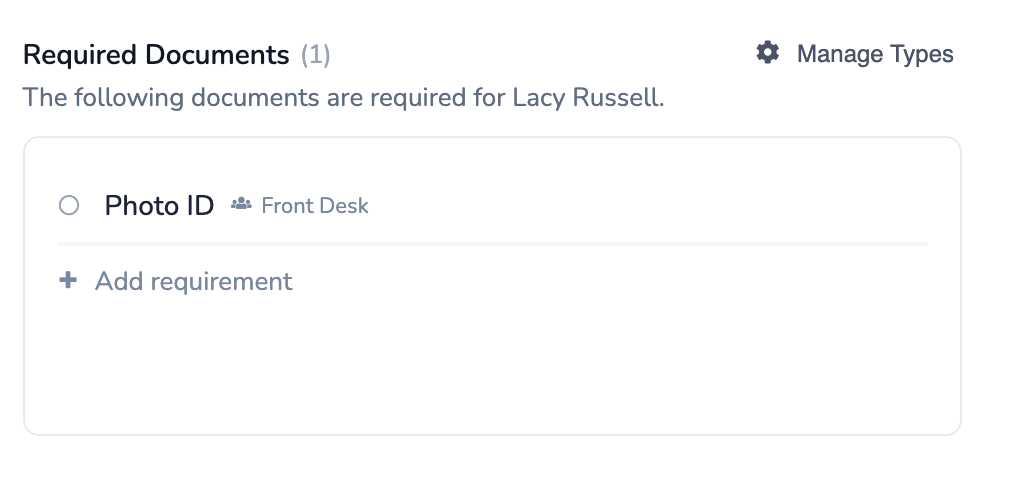
4) In the Documents tab, you can access existing documents, expiration dates, add new documents, view current compliance with required documents, and manage their required document types here.
Mobile
1) From your left-hand menu, select "Directory".
2) Search for or scroll to select the correct user. Then, click on their name to open their profile.
3) Click the “Work Information” tab.
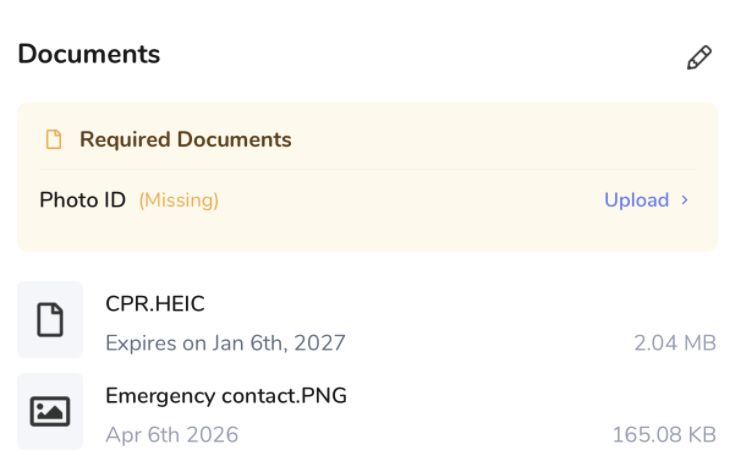
4) Scroll to the Documents section to access existing documents, expiration dates, add new documents, view current compliance with required documents, and manage their required document types here.
Team members can upload their own documents too:
Adding Required or Requested Documents
Learn how to upload important employment documents requested by your workplace