
Prospr Events lets you create and track events for your company. This helps your team stay aware of what’s coming up and who plans to attend.
When you add an event, it will send a notification to those who have been invited, show up on their Prospr schedule, and send reminders ahead of the event. If they’ve connected their personal calendar, the event will show there too.
Syncing Your Work Calendar to Your Personal Calendar
Keep your Prospr schedule in sync with your personal calendar.
Events do not mark someone as “busy” for scheduling. They can still be scheduled for shifts at the same time, since Events can stack on top of shifts.
Web
1) Navigate to “Scheduling” > “Calendar”.
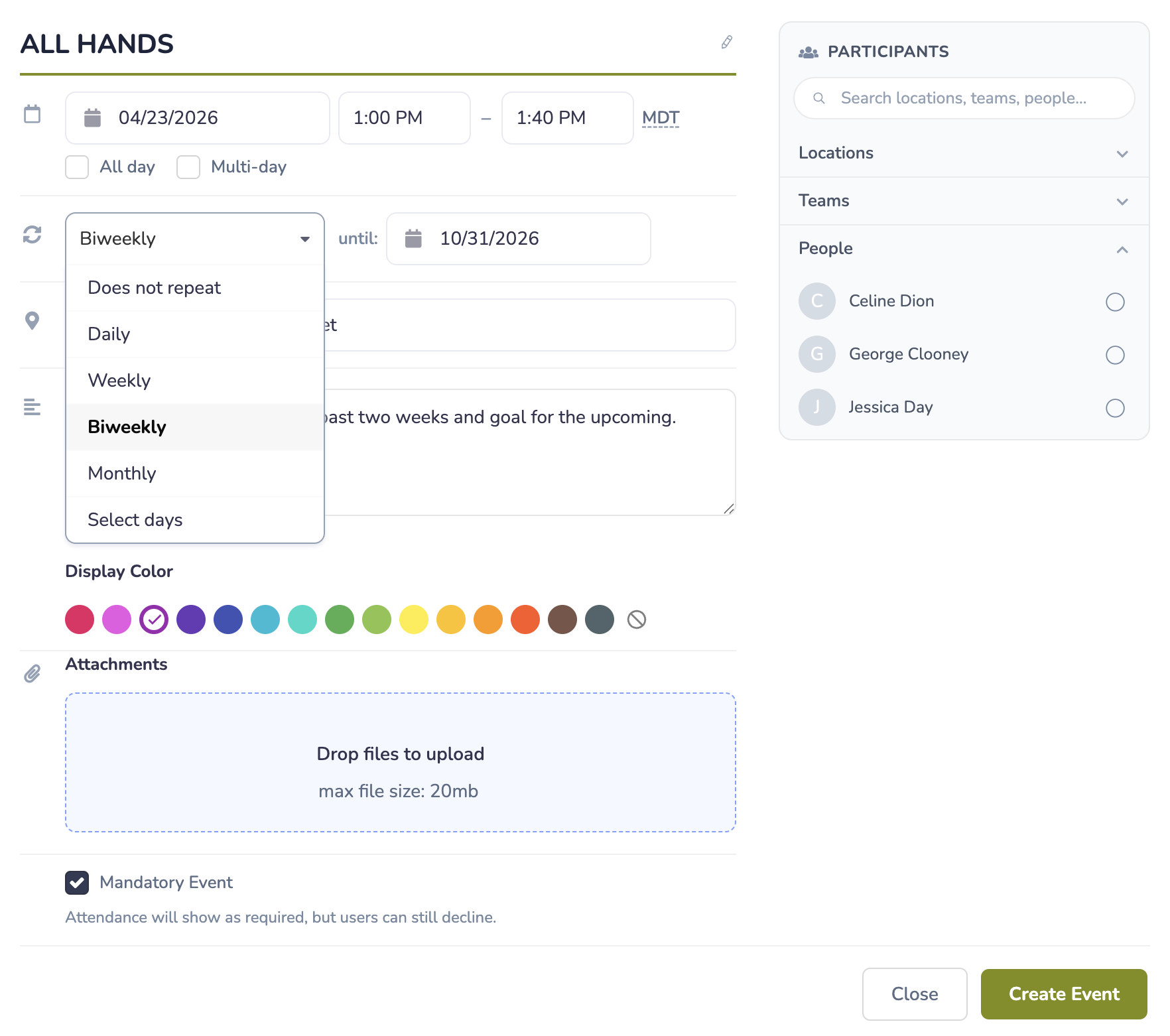
2) Use the “Create Event” button in the upper right-hand corner and build your event details: start date/time, all day, multi-day, repetition, location, description, color, files, mandatory designation, and participant by Locations, Teams, or individuals.
3) Once your Event is posted, the participants can begin to RSVP as “Attending” or “Not Attending” with an optional comment. You can track attendance on your Calendar.
Mobile App
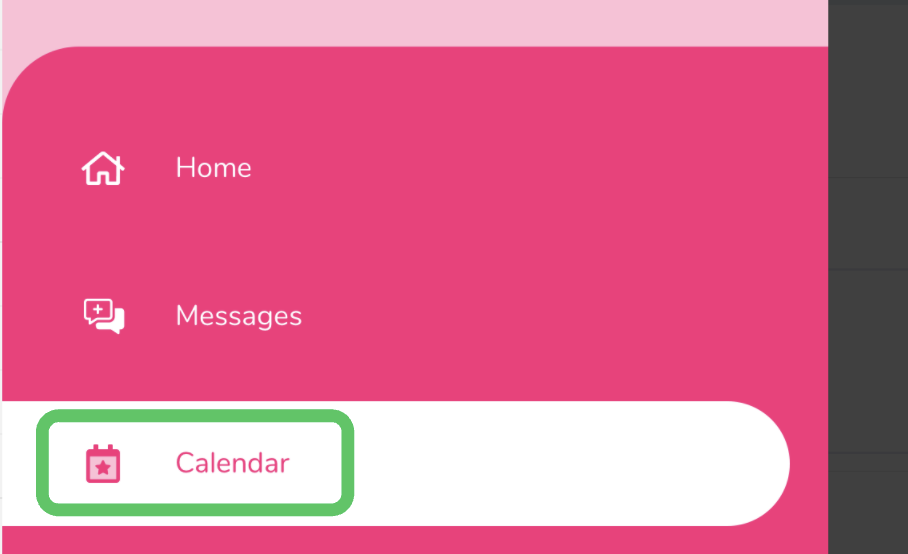
1) Use your app menu to navigate to “Calendar”.
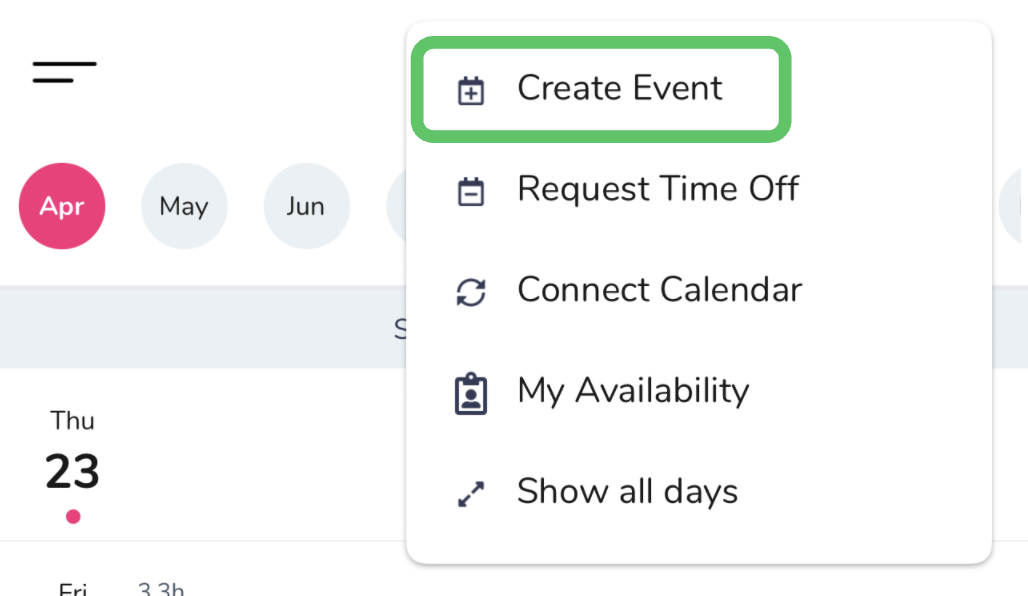
2) Use the dots in the upper right-hand corner to access your Calendar Menu and select “Create Event”.
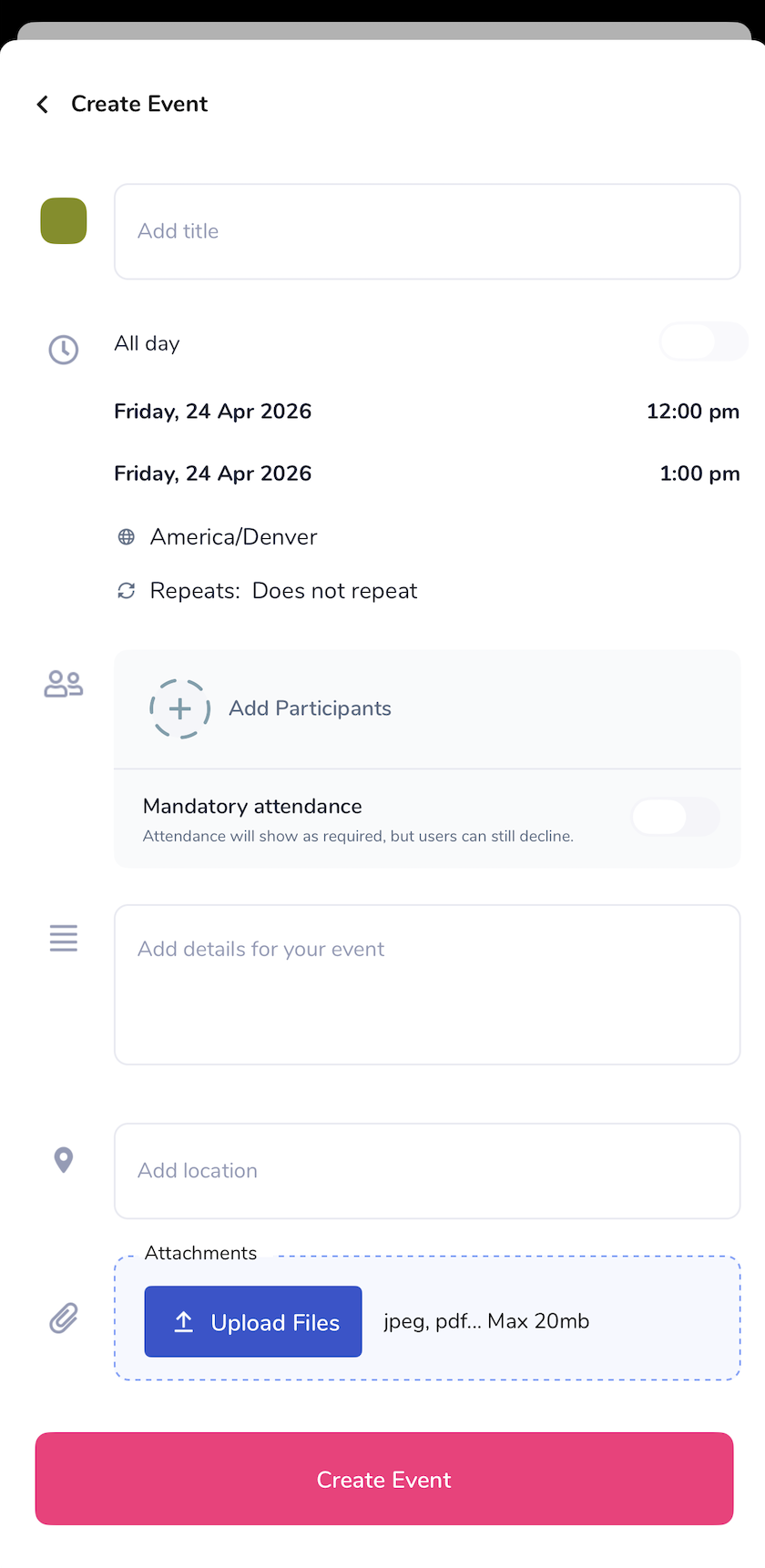
3) Enter your Event details and select “Create Event”.
3) Once your Event is posted, the participants can begin to RSVP as “Attending” or “Not Attending” with an optional comment. You can track attendance on your Calendar.