
When Bulletin Approval is enabled (see guide below on how to), Managers will require Admin approval for Bulletin posts to Dashboard.
For Managers (require approval)
1) As a Manager creating a Bulletin post, there will be a dropdown at the bottom of the Bulletin settings to “Select a Reviewer”.
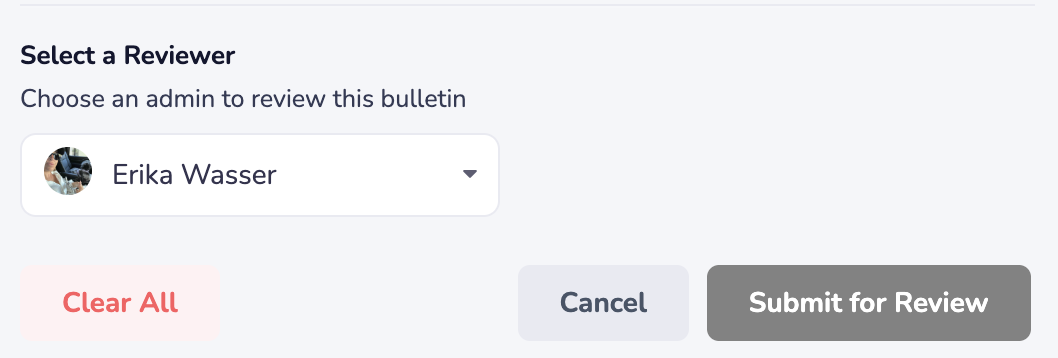
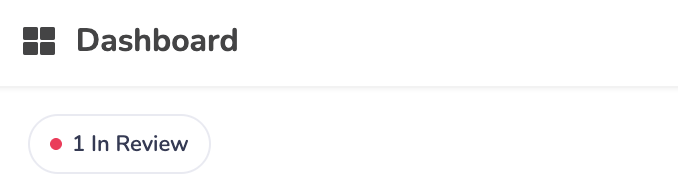
2) After you hit “Submit for Review”, the selected Admin will be alerted that a Bulletin post requires approval. While waiting, you’ll see an indicator on your Dashboard for “X# in Review”. You can click this area to view and modify anything that is still pending approval.
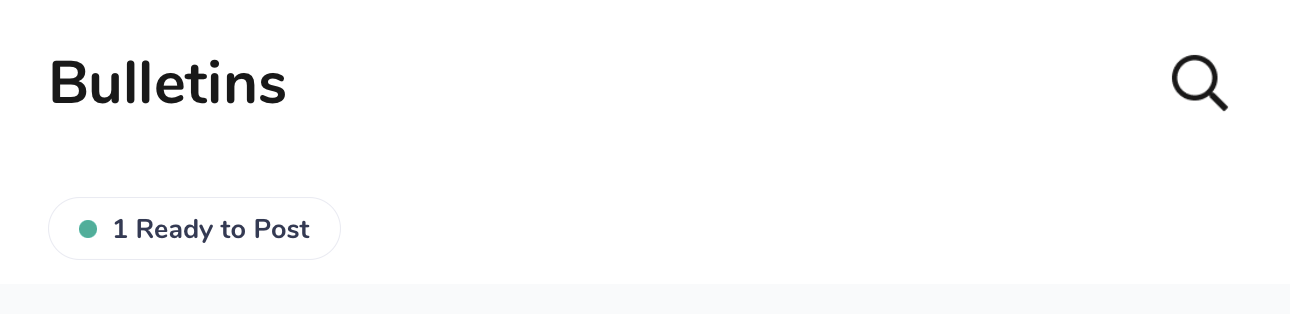
3) Once an Admin approves your Bulletin, you will receive a notification. During the approval process, the Admin may choose to publish the Bulletin for you. If they do not publish it directly, you can post it yourself by clicking the approval notification or selecting the “Ready to Post” option from your Bulletin Dashboard.
For Admins (to approve)
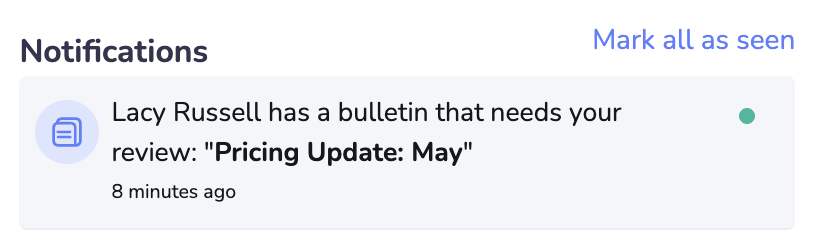
1) When a Manager has requested your approval for a Bulletin, you will receive a notification.
You’ll also have an indicator on your Dashboard for anything pending review:
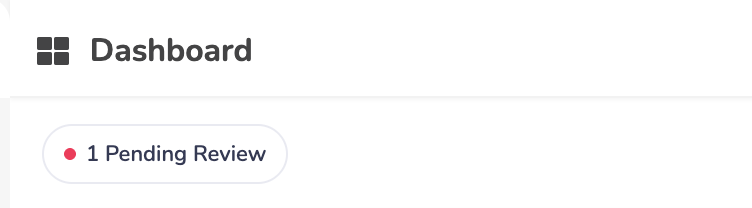
2) Click the notification or “Pending Review” button and you’ll have the chance to review, modify, and publish the Bulletin.
3) Select the Bulletin from the “Bulletin Press” list.
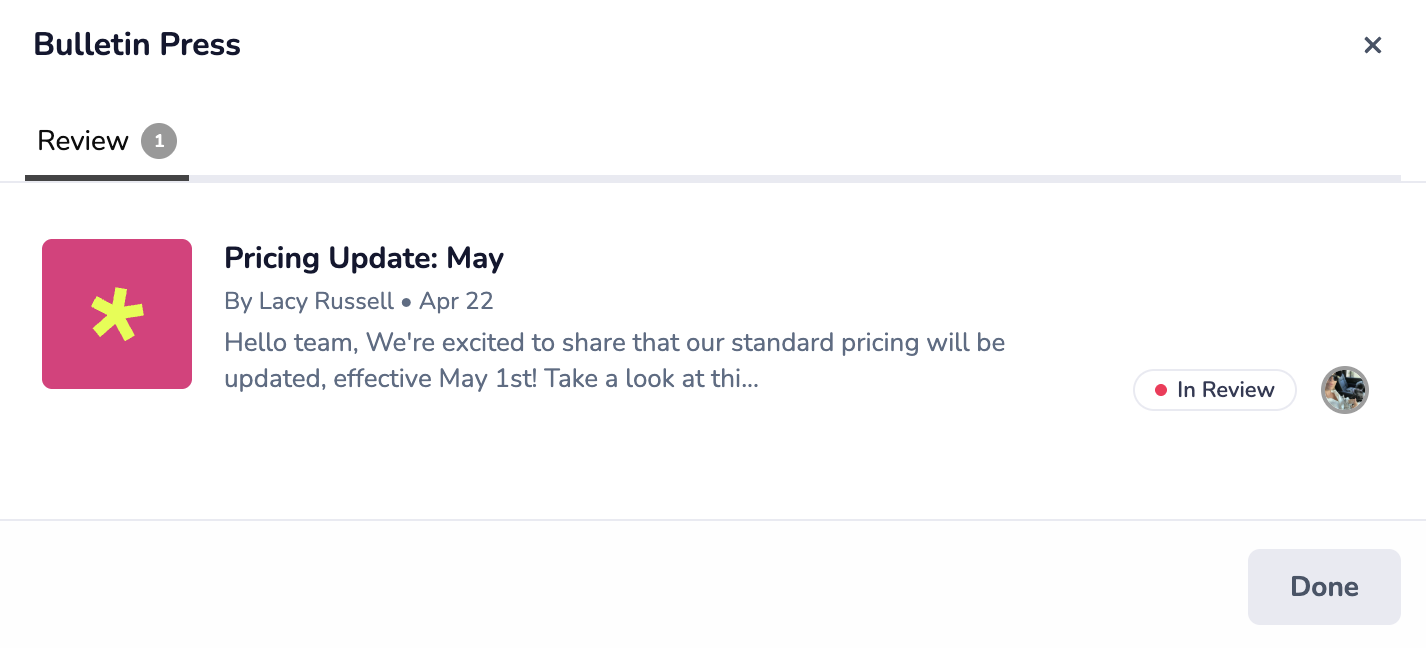
4) You can edit the content directly by clicking the edit pencil. Alternatively, you can request changes through a note to the original poster. The history of the approval process is tracked here as well.
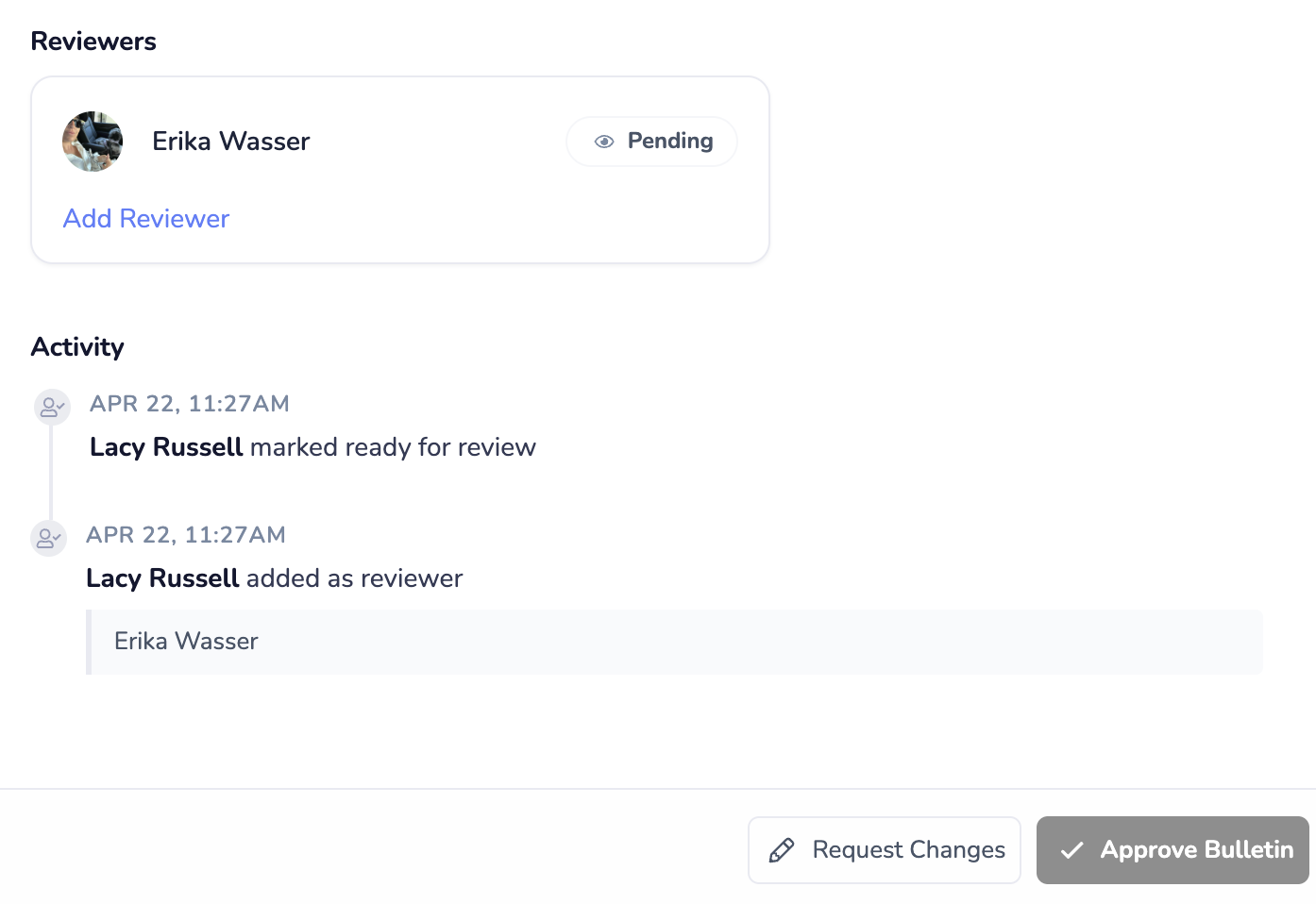
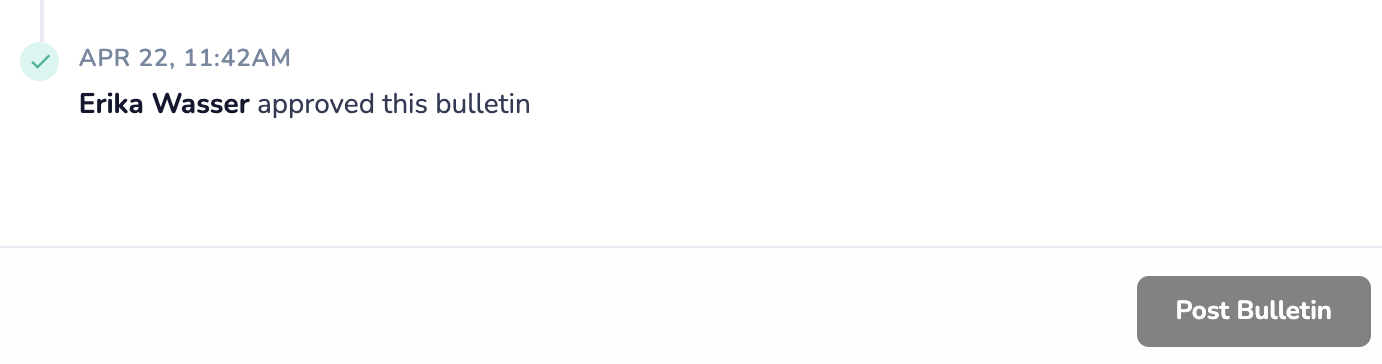
5) Once approved, the Manager who requested approval will receive a notification of approval. At this point, they can post it themselves OR after you click “Approve Bulletin”, you can choose to “Post Bulletin” directly.
Enable Bulletin Approval for Bulletin Posts
Learn how to enable the setting that requires Admin approval on Manager Bulletin posts
How to Create a Bulletin (Manager/Admin Only)
Posting to the virtual bulletin board