
Prospr Events lets you create and track events for your whole company or by location - and chat groups. This helps your team stay aware of what’s coming up and who plans to attend.
When you add an event, it will send them a notification to those who have been invited, show up on their Prospr schedule, and send reminders ahead of the event. If they’ve connected their personal calendar, the event will show there too.
Events do not mark someone as “busy” for scheduling. They can still be scheduled for shifts at the same time, since events can stack on top of shifts.
Web
1) Within a chat group, you can create an Event that will invite all of the chat’s members. Click the Event icon.
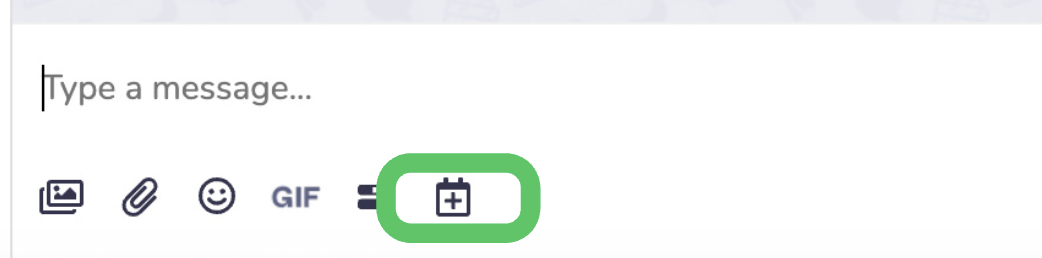
2) Search for an existing event, or choose to Create New Event.
3) Enter your event details (Title, Location, Description, Date/Time, and determine if you’d like the event to display to your team as “Mandatory”).
4) Once your Event is sent via chat, the audience can begin to RSVP as “Attending” or “Not Attending” with an optional comment.
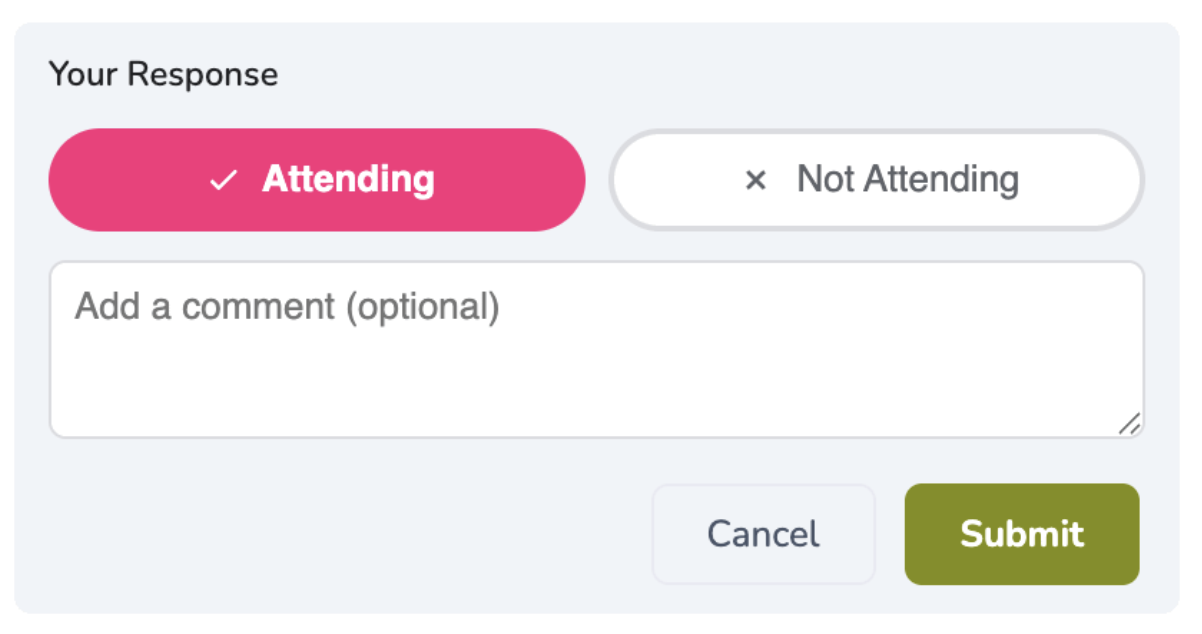
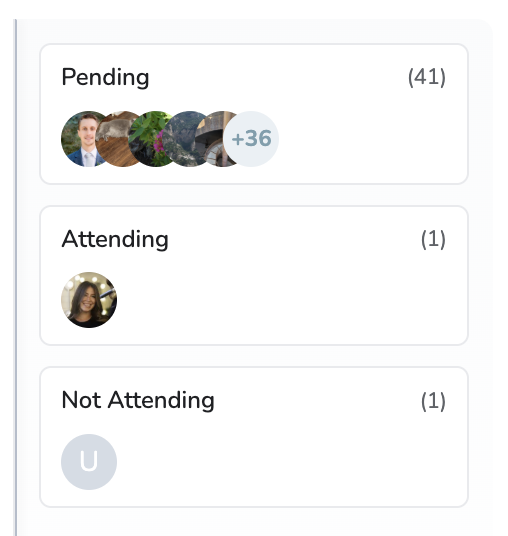
5) You can track RSVPs by clicking directly on the event in the chat thread.
Mobile App
1) Within a chat group, you can create an Event that will invite all of the chat’s members. Click the attachment icon, then the “Add an Event” button.
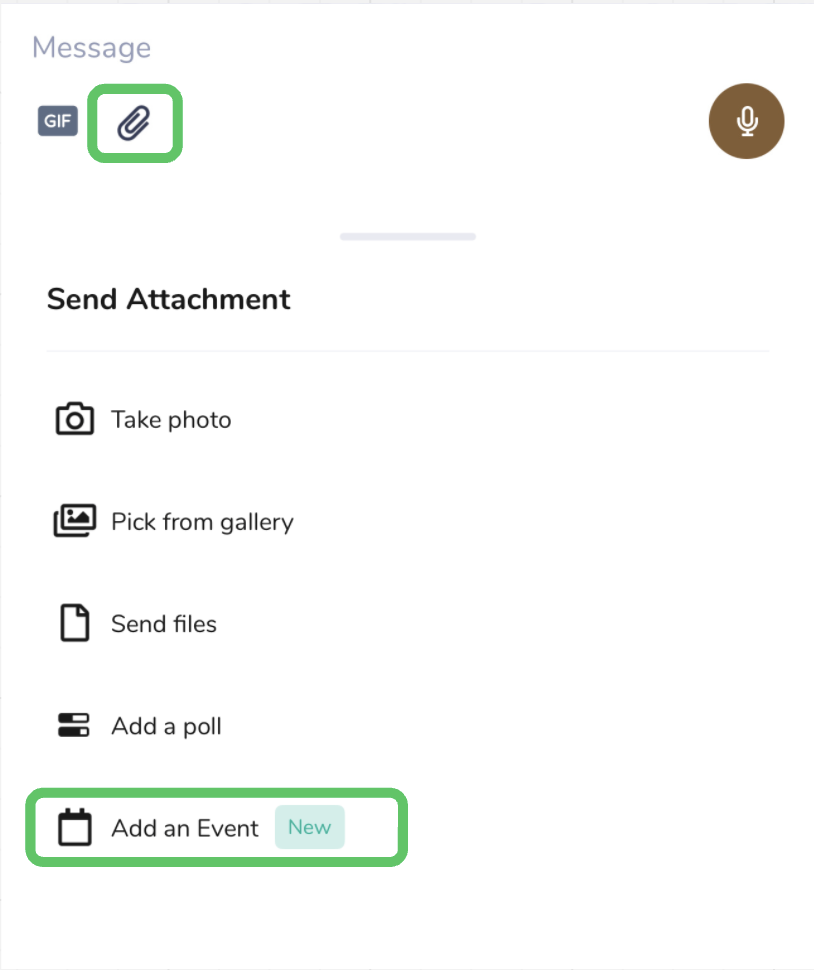
2) Search for an existing event, or choose to Create New Event.
3) Enter your event details (Title, Location, Description, Date/Time, and determine if you’d like the event to display to your team as “Mandatory”).
4) Once your Event is sent via chat, the audience can begin to RSVP as “Attending” or “Not Attending” with an optional comment.
5) You can track RSVPs by clicking directly on the event in the chat thread.