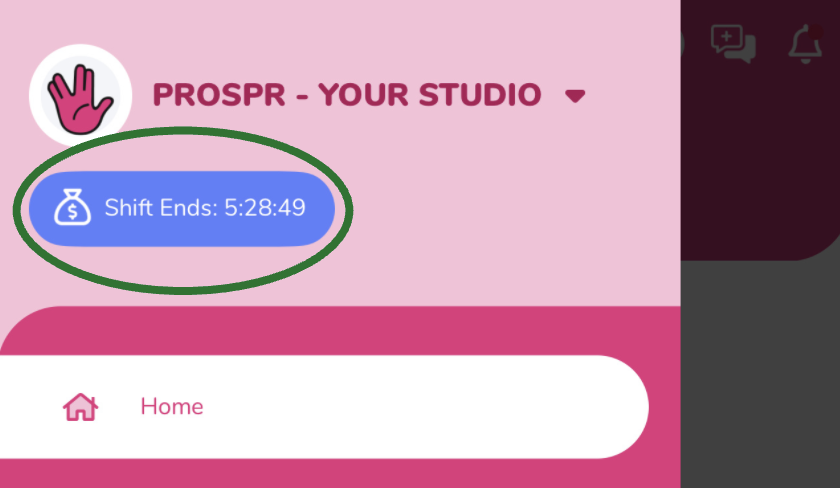
1) While on an active shift, open your app menu in the top left and then tap on your active shift card. It will read “Shift Ends: [X:XX:XX]”.
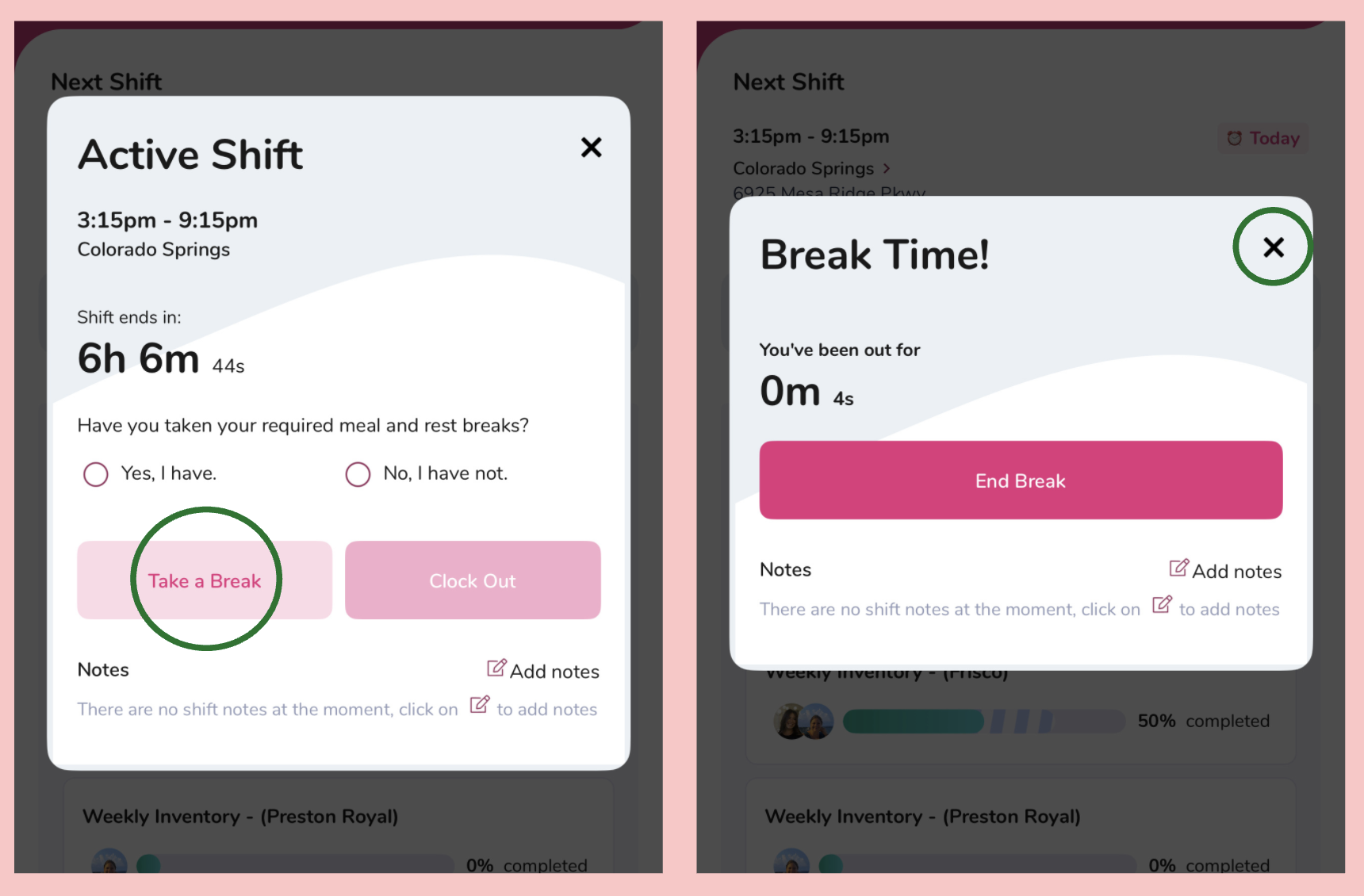
2) Tap the Button that says "Take a Break" to start your break. Your “Active Shift” will change to "Break Time".

3) When you're ready to end your break, open your app menu and tap "On Break [XX:XX]" to reopen the Break Time! menu.
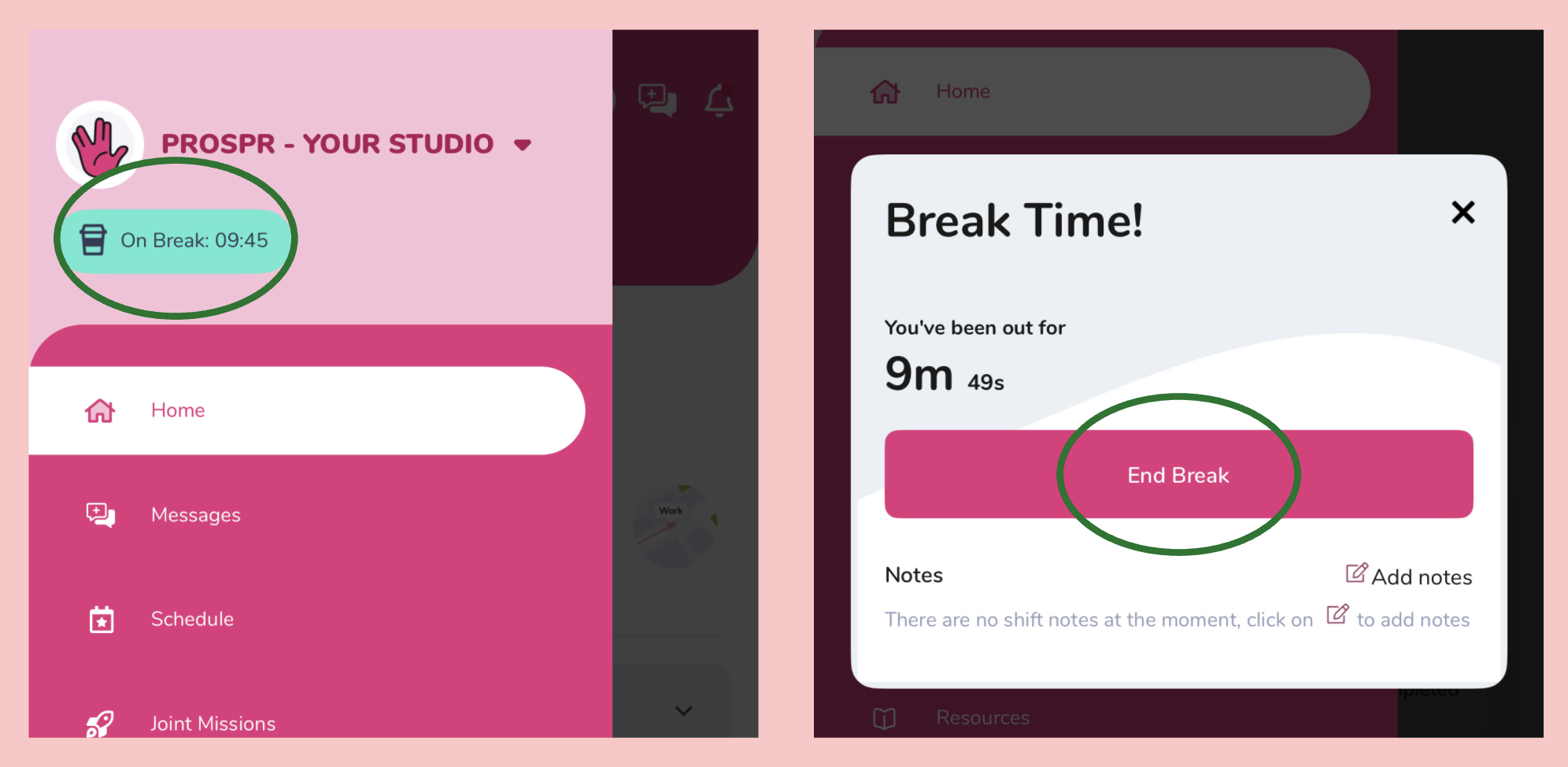
4) Tap "End Break" and you will be back on the clock! You will also see your break reflected on your time card.
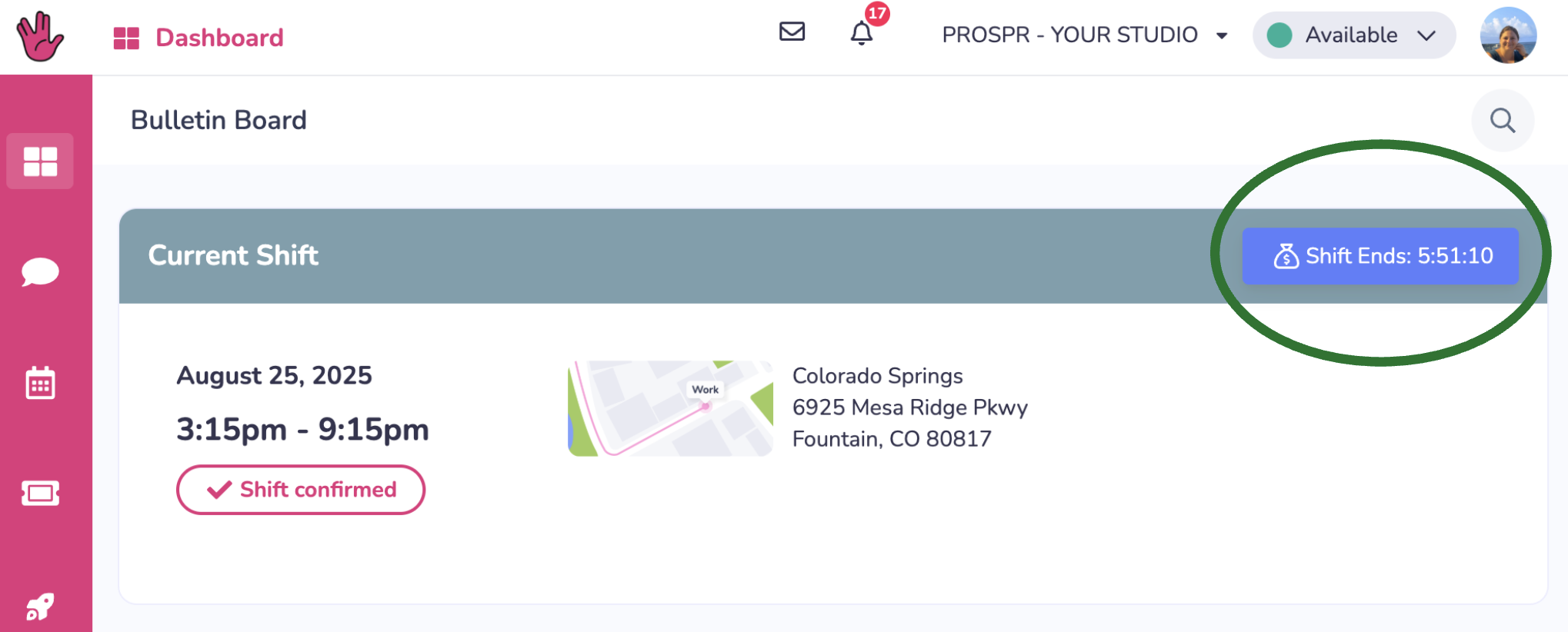
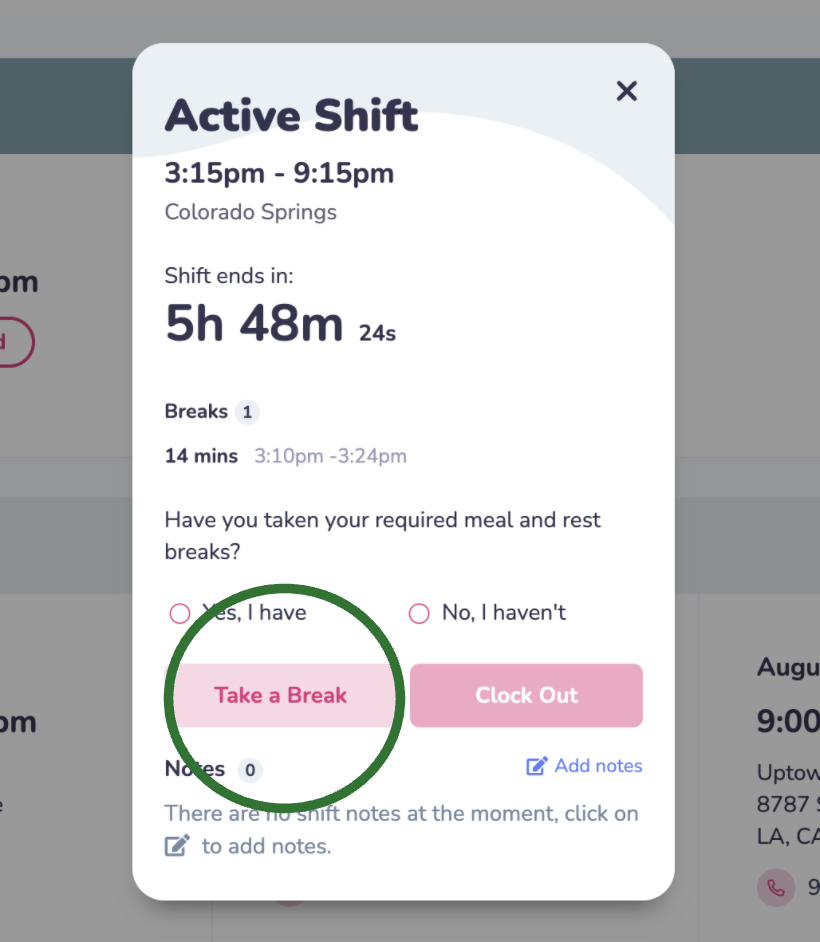
1) While on an active shift, your Dashboard will show your Current Shift and active shift card. It will read “Shift Ends: [X:XX:XX]”. Tap the shift card.
2) Tap the Button that says "Take a Break" to start your break. Your “Active Shift” will change to "Break Time".
3) When you're ready to end your break, click on your shift card that says "On Break [XX:XX]" to reopen the Break Time! menu.
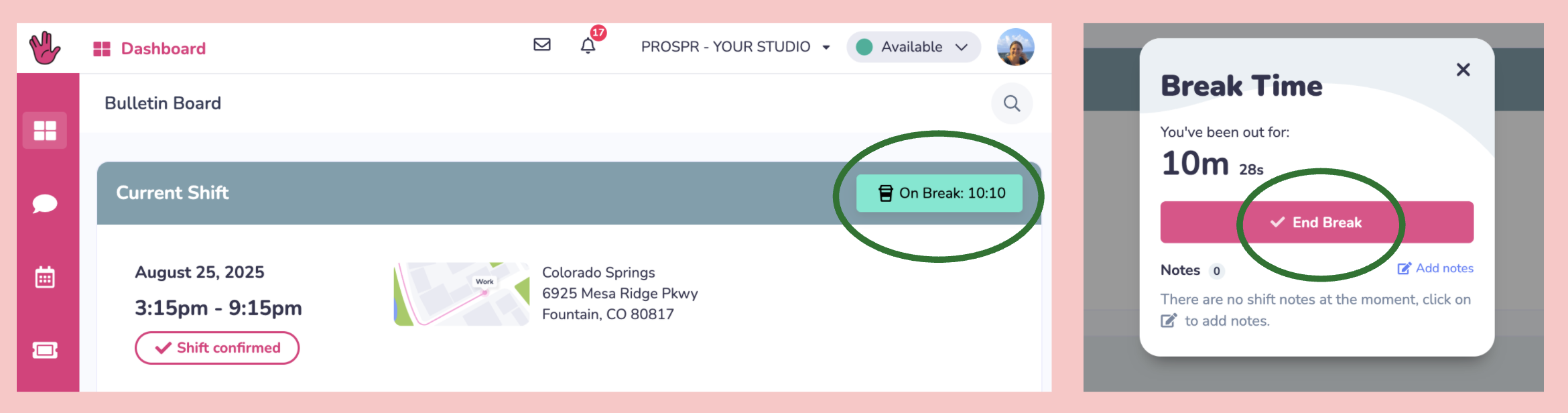
4) Tap "End Break" and you will be back on the clock! You will also see your break reflected on your time card.