1) While on the Prospr Web App, use your menu to head to the Dashboard.
2) On the right-hand side, you'll see the “Pending Approvals” section. From there, you can select “Pickups”, “Pickup Queue”, or “Time Off” to view the current shift switches or pickups requests or time-off requests.
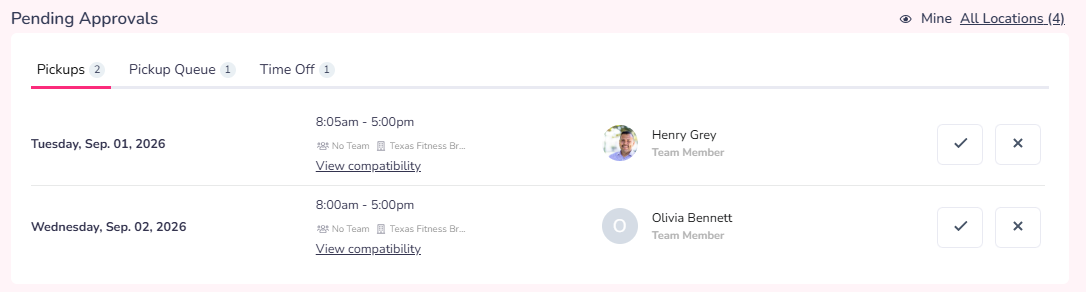

Click the “Check” button to approve the request
Click the “X” button to deny the request
Click the “Assign” button of the shift switch or pickup you want to approve or deny.
Click the “Shift Card” then select the user that you want to approve for that shift switch or pickup then click the “Make Assignments” button
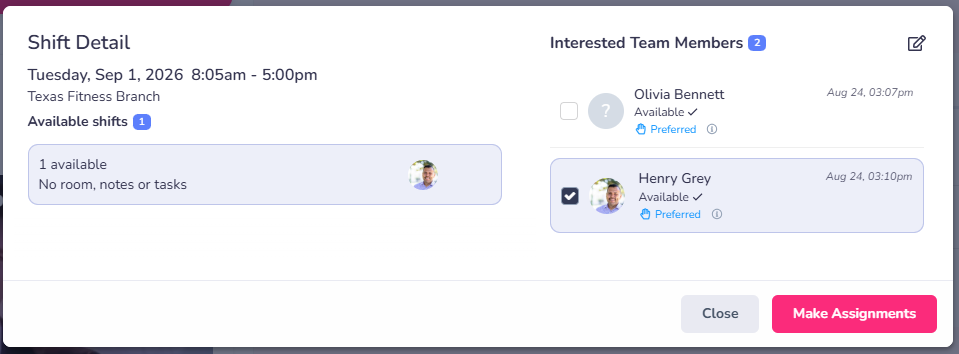
To remove interested user(s) in the shift switch or pickup, click the “pen and paper”/”Edit” button
Select the user(s) you want to remove (if there is more than one user interested in the shift), then click the “Remove Selected” button
Time off request information & actions:
Conflicts: Understand if time off requests conflict with existing, published shifts.
Time Off Taken: Hover over the checkmark for a popup of the team member's time off history. You may toggle through summaries that represent: In [current year], Past 365, All Time, or Past 30.
Approve: Click the checkmark to approve the request.
Deny: Click the "X" to deny the request.
(Optional) Comment: Leave a warm wish for your team member to enjoy their time, request an adjustment, or let them know why it may be denied.

1) While on the Prospr Mobile App, use your menu to head to the Dashboard.
2) Tap on the "Star" icon bottom center to read the "My Day" section of the app.
3) Tap "Pending Approvals" to see the current Shift Pickup, Shift Switches, Time Off, and Shift Pickup Queue.
Tap the “Approve” button to approve the request
Tap the “Decline” button to deny the request
Tap the “Assign Shift” button to open the “Shift Queue” page for the shift switch or pickup you want to approve or deny.
Tap the “Shift Card”
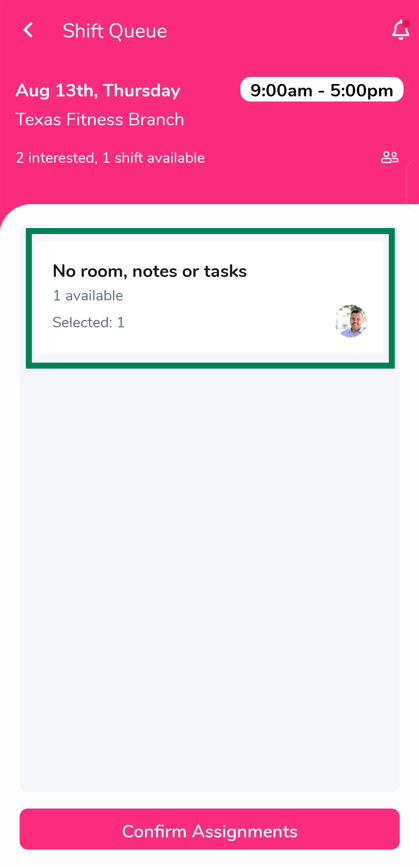
Select the user that you want to approve for that shift switch or pickup then tap the “Done” button
Lastly, tap the “Confirm Assignments” button
To remove interested user(s) in the shift switch or pickup, tap the “two-person”/”Edit” button
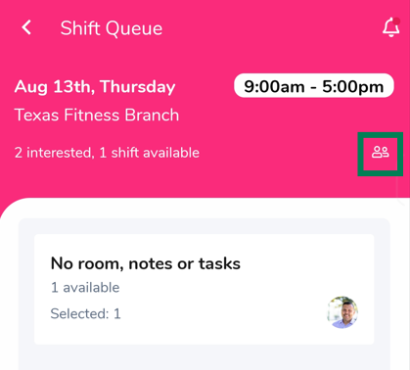
Select the user(s) you want to remove (if there is more than one user interested in the shift), then tap the “Remove Member” button
Time off request information & actions:
Conflicts: Understand if time off requests conflict with existing, published shifts.
Time Off Taken: Hover over the checkmark for a popup of the team member's time off history. You may toggle through summaries that represent: In [current year], Past 365, All Time, or Past 30.
Approve: Click the checkmark to approve the request.
Deny: Click the "X" to deny the request.
Leave a warm wish for your team member to enjoy their time, request an adjustment, or let them know why it may be denied.