Quick Links provide a convenient way to access frequently used websites, documents, and other online resources directly from Prospr. You can create Quick Links for your own use or share them with your workspace so other team members can access the same resources.

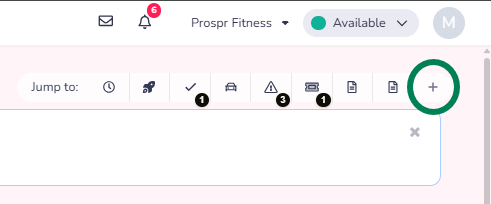
From the Prospr Dashboard, click the “+” icon in the upper-right corner of the screen.
Paste the URL you want to add into the pop-up window.
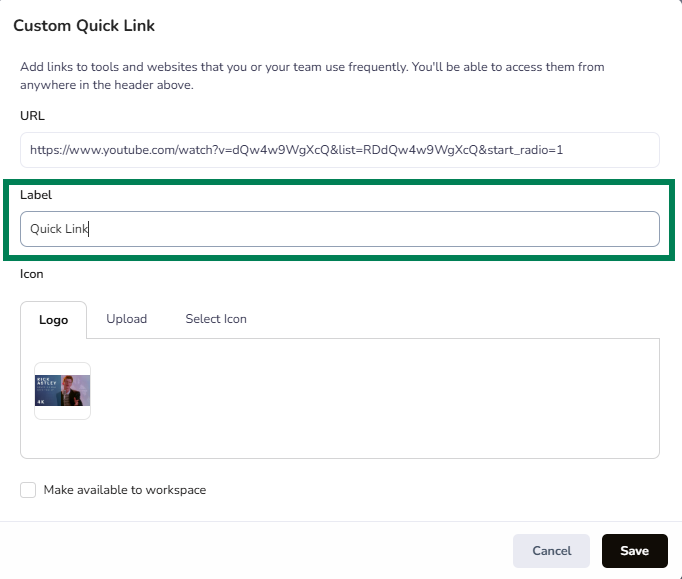
In the “Label” field, enter the name you want the quick link to display on the Quick Links section.
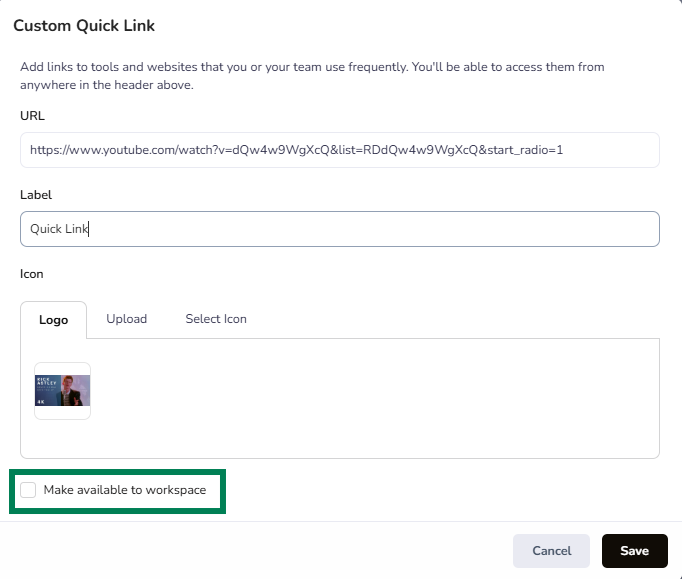
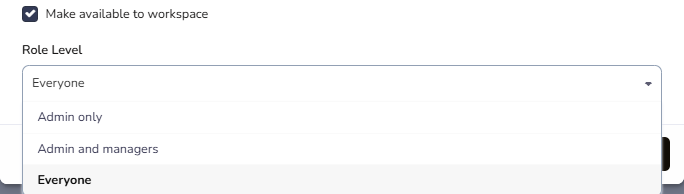
(Optional) Check “Make it available to workspace” if you want to share the quick link with others.
If you chose to share it, use the dropdown menu to select which users can access the quick link.
Click “Save” to create the quick link.
After a Quick Link is saved, it appears in the “Quick Links” section of the Prospr Dashboard in the web app. Simply click a Quick Link icon to open the associated website or resource.

On the upper-right side of the Dashboard, locate the Quick Links section.
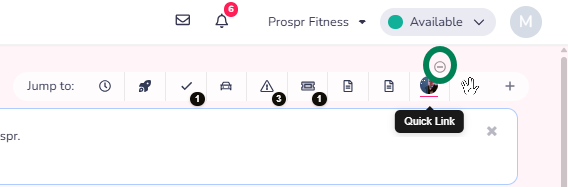
Hover your mouse pointer over the Quick Link icon you want to delete.
Click the “-” icon that appears above the Quick Link icon to remove it.