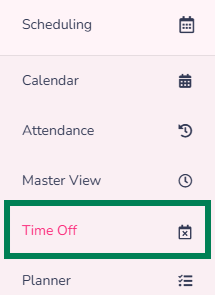
1) While on the Prospr Web App, use your menu to navigate to Scheduling > “Time Off”
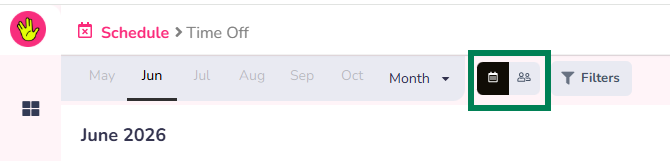
2) Modify your view to suit your needs:
Choose a Calendar vs Team view and any other filters.
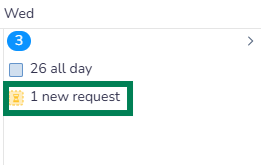
Unapproved requests are displayed in yellow.
Approved requests are displayed in blue.
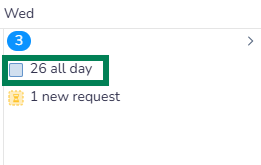
3) Select the request you wish to modify.
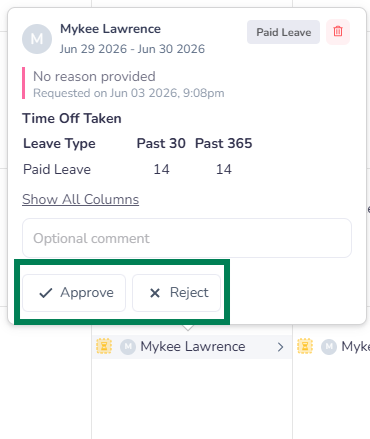
Hover your mouse pointer over the requested date that you wish to approve/reject, then click the “Approve” or “Reject” button
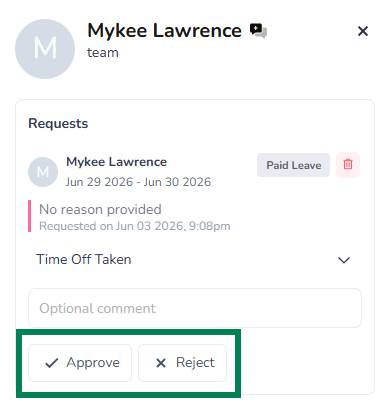
On the right side of your screen click the requested date you wish to approve/reject, then click the “Approve” or “Reject” button
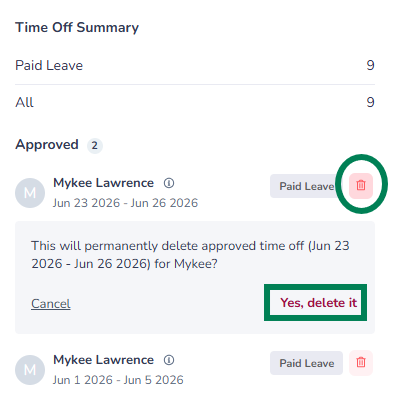
Click the approved time off date that you wish to cancel
On the right side of your screen click the trashcan icon and then confirm the intent to delete by clicking "Yes, delete it"
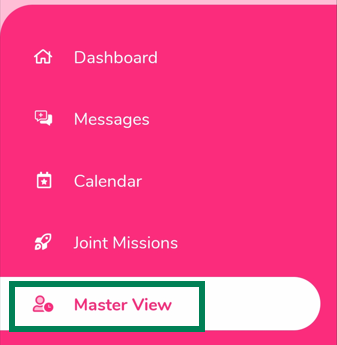
1) While on the Prospr Mobile App, use your menu to head to Master View. Then, click on "Time Off Tracker".
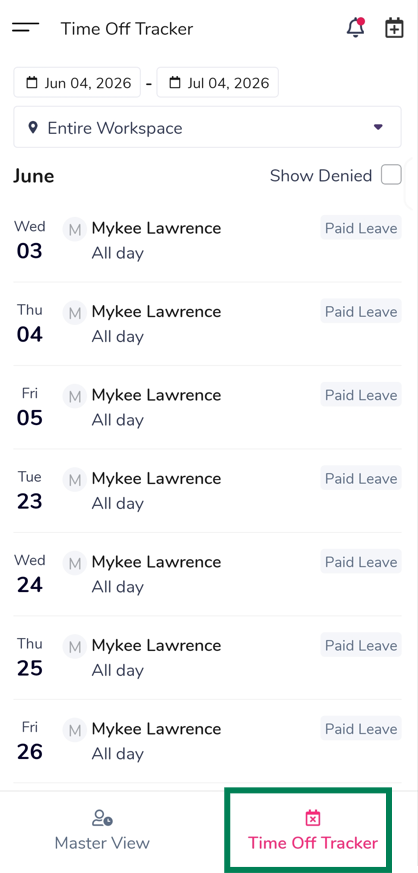
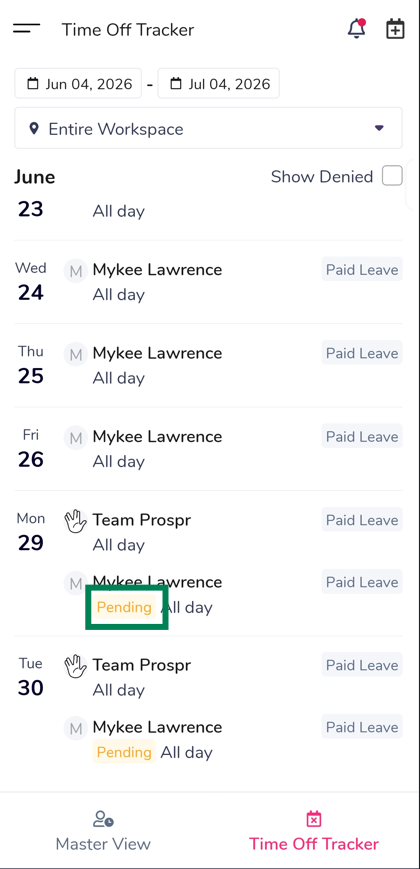
2) Pending requests will display a "Pending" tag. All other records in this view have been approved.
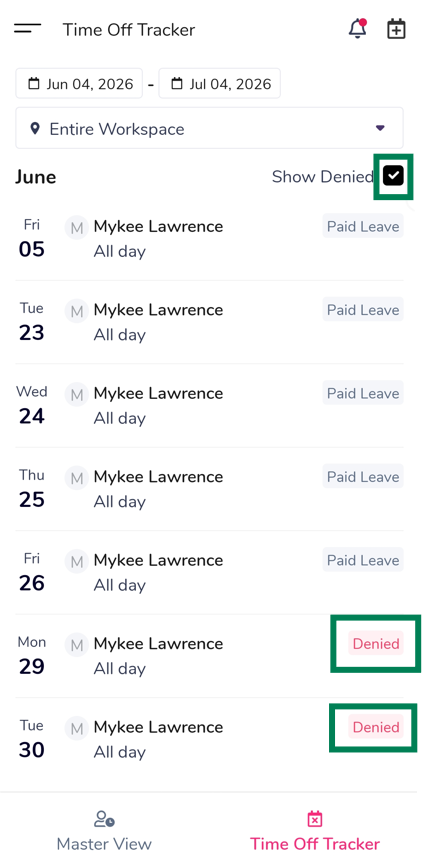
3.) You can also see denied time off request by tapping the “Show Denied” check box
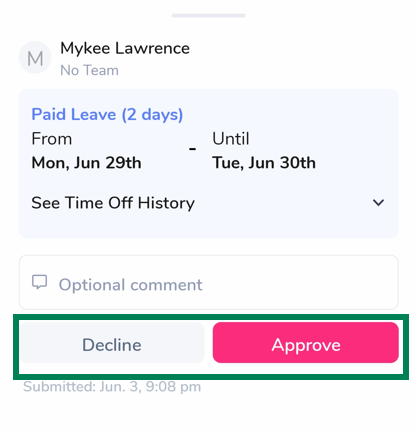
Press any pending record, tap “Decline“ or “Approve” button
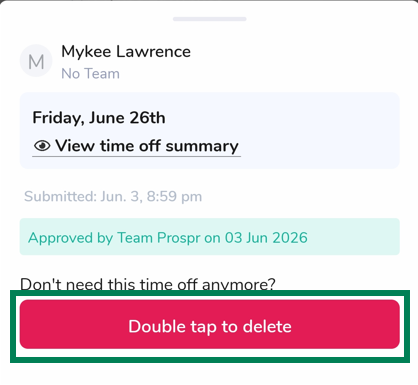
Press any approved record, and receive a prompt to "Double tap to delete"